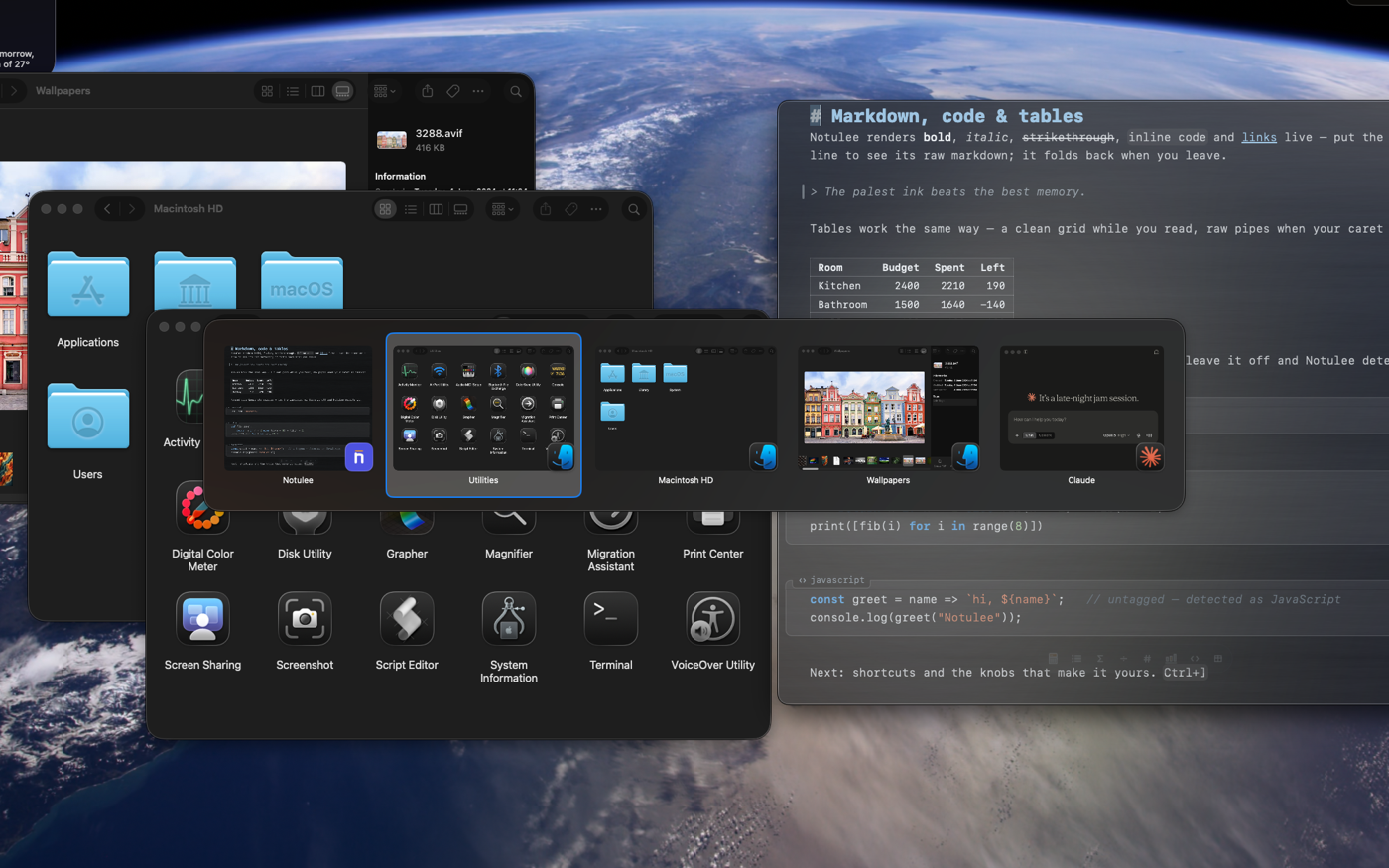
Snapping that speaks fluent
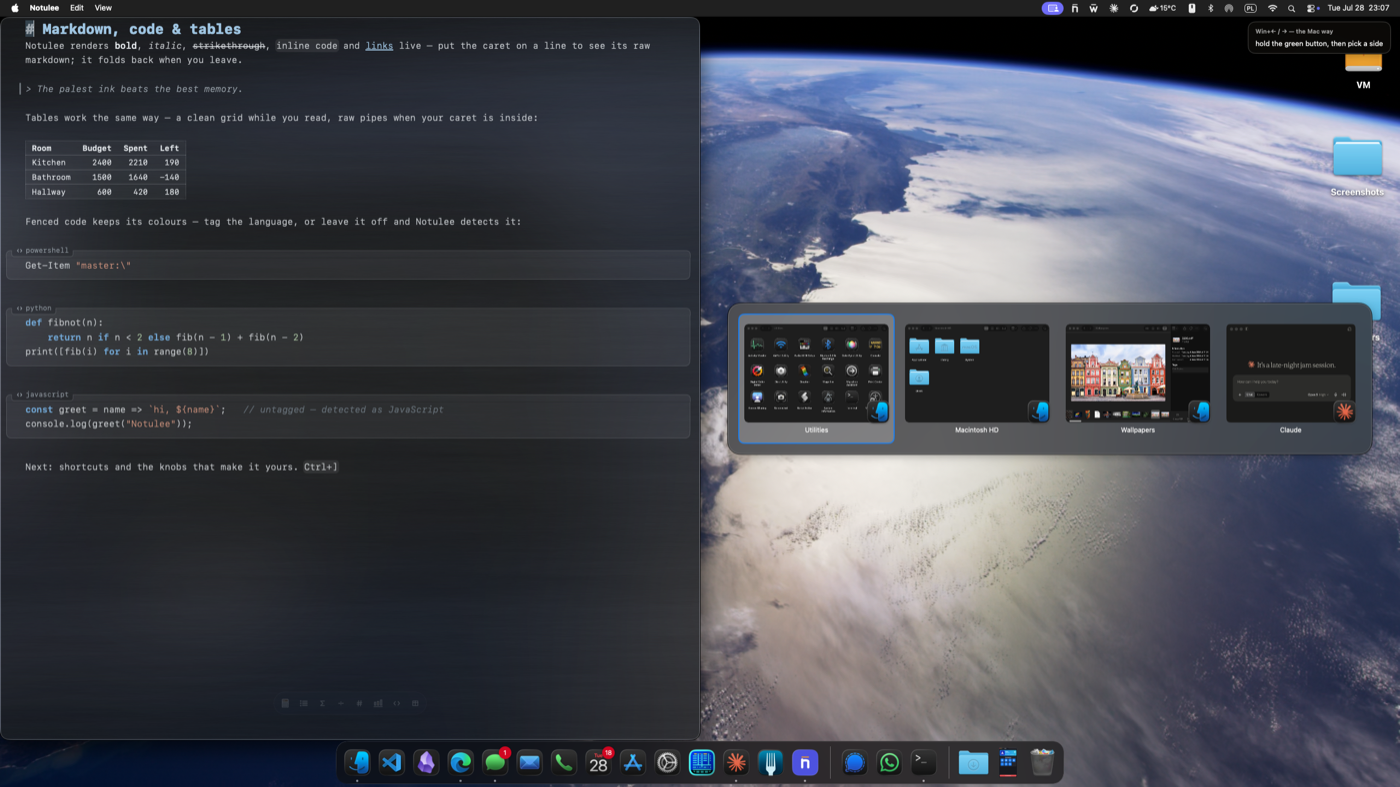
← throws the window to the left half. Arrow again for quarters. Snap assist then offers the rest of your windows for the other side. It’s the actual Windows behaviour on macOS, with your ⌘ key playing the key.

You moved to a Mac. Or maybe you never quite will, because work keeps you on Windows all day with the Mac sitting right next to it. Either way, your muscle memory stayed behind. WinExpat brings the whole reflex set over and teaches you the local dialect while you work.
Native Swift, no account, no telemetry.

What your hands currently get on a stock Mac, in full.
Every switcher knows this list by heart. WinExpat ends it.
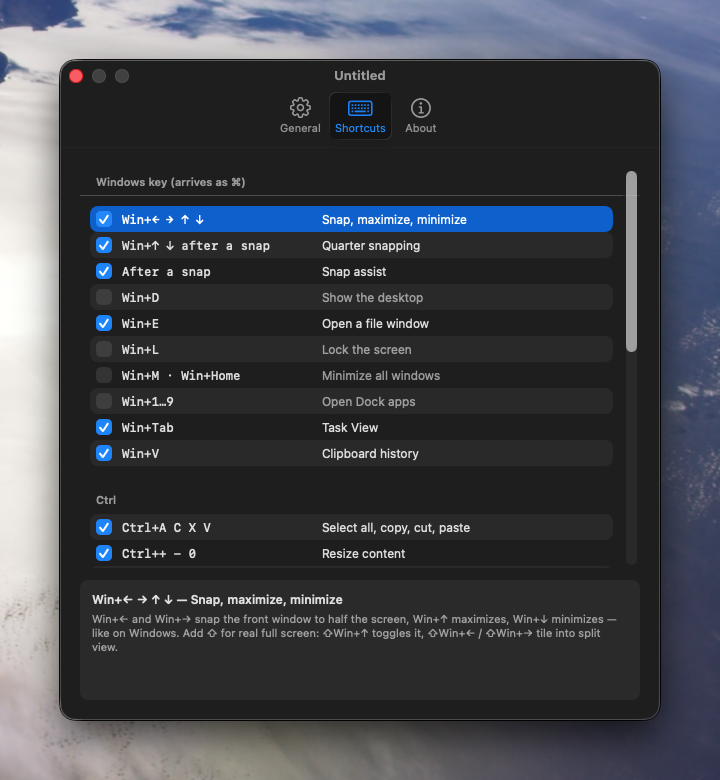
AltTab gives you the switcher. DockDoor gives you dock previews. WinExpat gives you your hands back: the switcher, the snapping, the key, the screenshots, the editing chords, the file habits. All of it, and each one is a checkbox you can turn off.
← throws the window to the left half. Arrow again for quarters. Snap assist then offers the rest of your windows for the other side. It’s the actual Windows behaviour on macOS, with your ⌘ key playing the key.

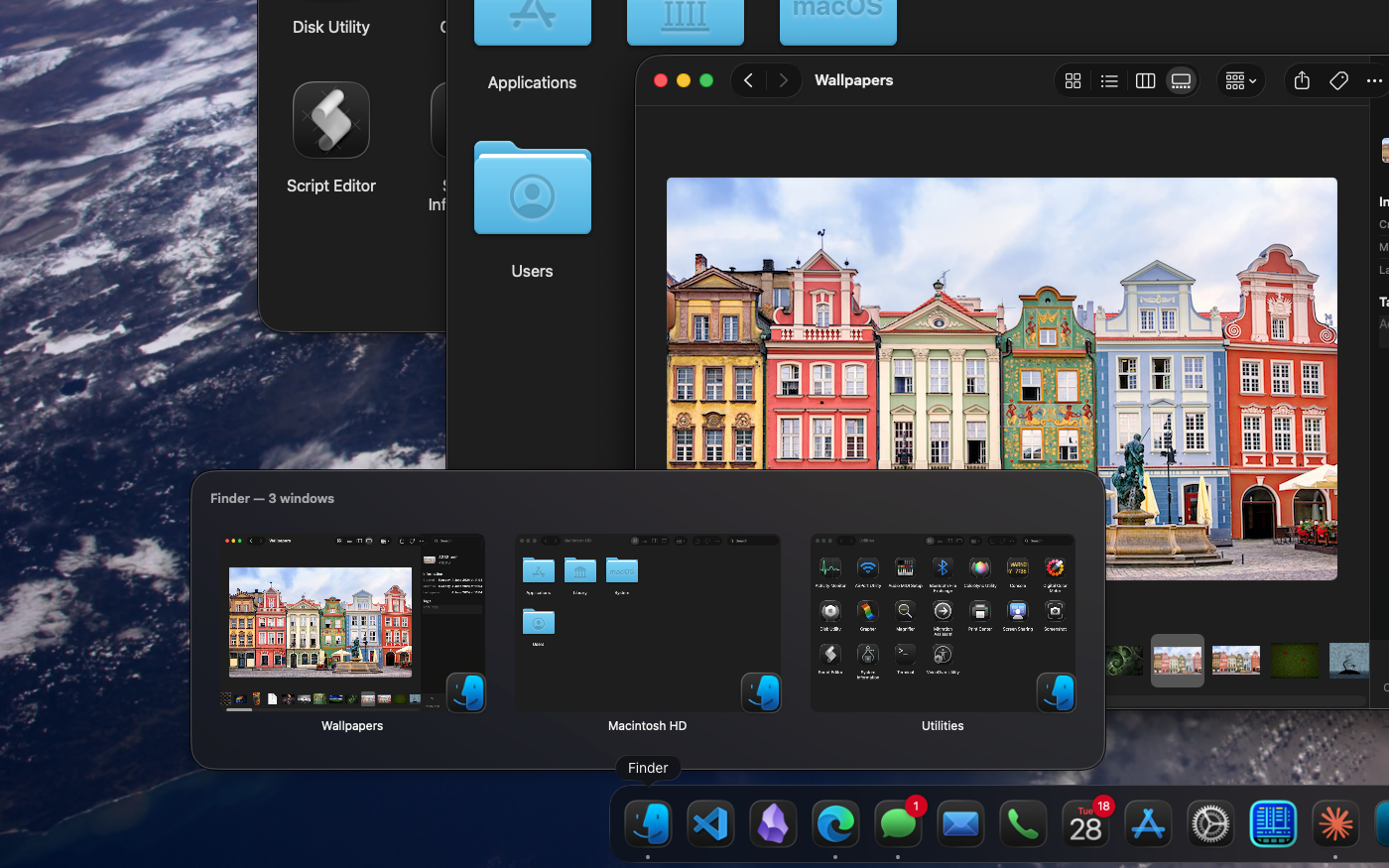
Rest the pointer on a Dock icon and every window of that app pops up as a live preview, with a count in the header so you finally know how many Finder windows you actually have open. Click one and you’re there.

Every time WinExpat catches a Windows chord, it can whisper the native one back at you. One day you’ll flick ⌘ ⇥ like a local, and you’ll probably keep WinExpat around anyway for the snapping.
And if Windows is still your day job, skip the lessons. WinExpat is just as happy being permanent: one reflex set for both machines, nothing to unlearn on Monday morning. For the fully committed there’s a switch that swaps Ctrl and ⌘ outright, system-wide — every remap that just became redundant politely stands down.

Square keys are what your hands do. Rounded keys are what the Mac wanted all along. WinExpat handles the first column and teaches you the last.
Got a keyboard in front of you? Press Alt, Ctrl or ⌘ and the rows it belongs to light up. Yes, that is the whole product in one gesture.
| What your hands do | What it does | The Mac way |
|---|---|---|
| Alt Tab | Window switcher with live previews | ⌘ ⇥switchesapps, ⌘ `cycleswindows |
| ←/→ | Snap the window to half the screen | holdthegreenbutton,pickaside |
| ↑/↓+ ←/→ | Quarter snapping, with snap assist | no native equivalent (you’re welcome) |
| Alt F4 | Close the window | ⌘ Wcloses, ⌘ Qquits |
| Alt Space | Full window menu: move, snap, full screen, close | no native equivalent |
| Double-click Title-bar | Maximize the window | ⌥clickthegreenbutton |
| What your hands do | What it does | The Mac way |
|---|---|---|
| D | Show the desktop | fn F11 |
| E | Open a file window | ⌘ NinFinder |
| L | Lock the screen | ⌃ ⌘ Q |
| M | Minimize all windows | ⌥ ⌘ M |
| 1…9 | Open the nth Dock app | no native equivalent |
| Tab | Task View, all windows | ⌃ ↑MissionControl |
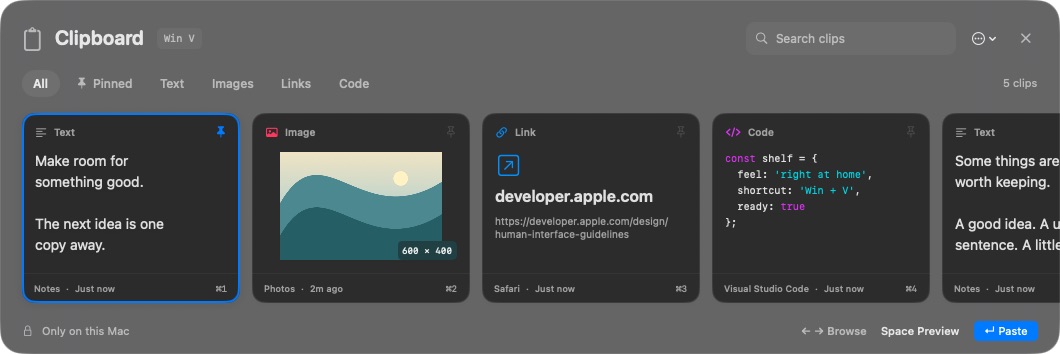
| V | Clipboard history, via Spotlight | ⌘ Spacethen ⌘ 4inSpotlight |
| PrtScn | Screenshot, straight to file | ⇧ ⌘ 3 |
| Esc | Every remap off in one press — same chord brings them back | no native equivalent |
| What your hands do | What it does | The Mac way |
|---|---|---|
| Ctrl A/C/X/V | Select all, copy, cut, paste (terminals keep Ctrl+C) | ⌘ A/C/X/V |
| Ctrl ←/→ | Jump word by word | ⌥ ←and ⌥ → |
| Home/ End | Jump to line start and end | ⌘ ←and ⌘ → |
| Ctrl Home/End | Start and end of the document | ⌘ ↑and ⌘ ↓ |
| Ctrl +/-/0 | Zoom in, out, back to 100% | ⌘ +/-/0 |
| Ctrl+scroll | Zoom in and out | pinch,or ⌘+ |
| Ctrl F4 | Close the document or tab | ⌘ W |
| Ctrl ⇧ Esc | Task Manager (Activity Monitor) | ⌥ ⌘ Escforforce-quit |
| Tabindialogs | Move focus between buttons and controls, like Windows | “Keyboardnavigation”inSettings —wecarrytheswitch |
| Ctrl⇄ ⌘ | Swap the two keys outright, system-wide — the all-in option | Settings›Keyboard›ModifierKeys |
| What your hands do | What it does | The Mac way |
|---|---|---|
| F2 | Rename the selected file | Return |
| Enter | Open the selected file | ⌘ Oor ⌘ ↓ |
| Ctrl Xthen Ctrl V | Cut files, move them | ⌘ C,then ⌥ ⌘ V |
Three steps, no paperwork. Unusual, for an immigration process.
One 1.8 MB disk image. No wizard, no Next-Next-Finish, and nobody asks you to create an account.
It’s signed and notarized, so Gatekeeper lets it through. If your Mac still frowns, right-click and choose Open. First dates are always a little awkward.
Accessibility for switching, snapping and hotkeys. Screen Recording for the live window previews. Both prompts appear on first launch; your reflexes work the moment you say yes.
Lives in the menu bar. Starts at login, unless you’d rather it didn’t. To uninstall, drag it to the Trash and that’s it. No residue, no hard feelings.